Passwords, They Will Be the Death of All of Us!

I have written about passwords quite a bit but the issue with passwords keeps coming up. Whether it is while setting up a new computer, setting up a new phone, or due to some changes made by a company or site, passwords keep being a major issue for many of us. How can anyone keep track of all of them? Then you need to add all of the multi-factor authentication, and it can get very confusing. Here are my latest recommendations about passwords. 

  1. Password Managers – They are still the best way to keep all of those passwords straight and safe. Whether you import all passwords from a browser or input them one by one as you need them, a password manager will keep all of your passwords safe and even help you change passwords when needed. If you are not familiar with how they work, they store all of your passwords on your devices, but you still need to input your main password into the manager to access all other passwords. It is much easier to remember one password than trying to keep fifty passwords unique and safe. Most require a small subscription for use across multiple devices, but it is well worth it.
  2. Browser built-in password managers – All browsers will offer to save your passwords to make it easier to login to all of your accounts. The important thing to remember about these built-in password managers is that they don’t require any password before they can be accessed. This means if someone can get into your computer and open your browser, they will have access to all of your passwords. There have even been cases where someone was able to steal the login credentials for a browser account and then set that account up on another computer and now, they have access to all of that person’s passwords in an environment where they would never be seen. This type of password manager is great for convenience but not for safety.
  3. Using an Encrypted Spreadsheet – I have known many people that keep all of their passwords on their computer, but they are in a password encrypted spreadsheet. This is fairly easy to set up, and it will keep your passwords safe, but what happens if your computer crashes and the hard drive fails? Unless you keep another copy of that spreadsheet on another drive you might be out of luck. I even know people that keep this spreadsheet on a thumb drive to make sure it is available if their computer dies. Just remember that thumb drives can also fail.
  4. Notebook, printed spreadsheet or address book – This is the way many of us kept our passwords for years. You have a small book where you keep all usernames and passwords, and you erase or cross out old passwords and write in the new ones. Some people even write the date of the change to try to make it as understandable as possible. I have helped set up computers for many people who use this method. It is not fool proof. It is too easy to update a password on the fly and forget to update on your sheet. Another issue with this is not having the list available when you are on your phone and not at home. Also, if you print this from your computer and then make changes you can end up with multiple copies or worse lose your copies. This method is set up to fail.

Out of all methods listed, only the actual password managers can keep you connected and safe in this modern world where each of us has dozens of accounts and we need access to those accounts on more than one device. If you are using methods 2,3, and 4 above I would love to help you get organized and catch up with the best option for your passwords. They are not going away and the longer you wait to adopt this method the worse it will get.

One more thing about all of these passwords and keeping access to your accounts, if you are offered multifactor authentication for any account, I suggest you set that up also and use every authentication method they allow you to use. Set up their authenticator app, use your phone number, and use your email address. Having more than one way to access your account will keep you from permanently losing access to an important account.

Speaking of authenticator apps, just know that when you get a new phone you will need to reset most of those connections. This is why it is important to have other ways to authenticate. Usually once you get into the account you can easily reset the authenticator.

As always, I am available to help with this type of issue.


Want to get my computer services updates and reminders directly into your email inbox? Sign up for my FREE Newsletter!

Taming the Lightning Threat

I talk about this every year, but it still needs to be said again and again. Lightning can and does kill electronics. Taking precautions can save your devices.

Every year, thousands of people have to make a claim with their homeowner’s insurance due to lightning strikes that destroy their electronics. If these electronics are computers, the loss might even be greater than money if they lose precious data that can’t be replaced. Hopefully all of you have backups in place for that, but that is not what I am talking about today.

Today, I want to focus on protecting from power surges that can send too much electricity through your devices and actually destroy them. Lightning is a very dangerous thing and it can happen at almost any time.

Any electronic device in your household (computers, stereos, printers, televisions, routers, gaming systems and anything else that is plugged into an electric outlet) should be plugged into a surge protector instead. A surge protector is similar to a power strip except that it has a protection built into it that will cut the circuit to the devices if there is a dangerous amount of electricity going through the surge protector.

All surge protectors are power strips, but not all power strips are surge protectors. When purchasing a strip make sure it also offers surge protection. Many will also offer a warranty that includes an amount of protection for the devices connected if the surge fails. This protection can take the place of using your insurance in many situations. When shopping for surge protectors, look on the packaging for this type of added protection. This can save you from an insurance rate increase for a small claim.

I think most people have surge protectors for their electronics that are stationary like desktop computers, televisions, and printers, but many people forget about phone chargers and even laptops since they get plugged into the closest outlet whenever needed, instead of a permanent spot that has a surge connected. These devices can be affected by lightning just as much as the stationary devices, and might be more vulnerable since they are not stationary.

All of us should get into the habit of plugging phone chargers into a surge before charging our lifeline devices. I also recommend adding a surge protector to your laptop bag, so you always have one handy even when you are not at home. Lightning can strike at a coffee shop just as easily as your home. Plus it might be helpful to be able to plug in more than one device at the coffee shop sometimes.

You spend a lot of money on these devices, why not spend a little more to protect them.


Want to get my computer services updates and reminders directly into your email inbox? Sign up for my FREE Newsletter!

Laptop Battery Life, How to Keep It from Disappearing.

This is an issue that comes up frequently. Someone has a laptop that is only a couple years old, but the battery won’t hold a charge for more than about an hour when it used to last for many hours. 

What I usually find out is that this person leaves it plugged in almost all of the time. They only unplug if they want to use their laptop somewhere besides the desk or table they normally use. They think it might run out of juice.

That is the worst thing you can do with your laptop battery. It needs to be used. The entire battery, not just the top 10%. If you always keep it plugged in the battery will become useless. It is best to only plug it in when it is less than 10% left and then charge it until it is full. Once it is full, unplug it. By doing this your battery will last much longer and continue to give you hours of use per charge.

I know sometimes this is not possible if you are in an important meeting and can’t risk having the battery go dead. Leaving it plugged in once in a while will not cause damage but the constant plug in will. Another good thing to do is once a month let it die completely. This is like a reset for the battery.

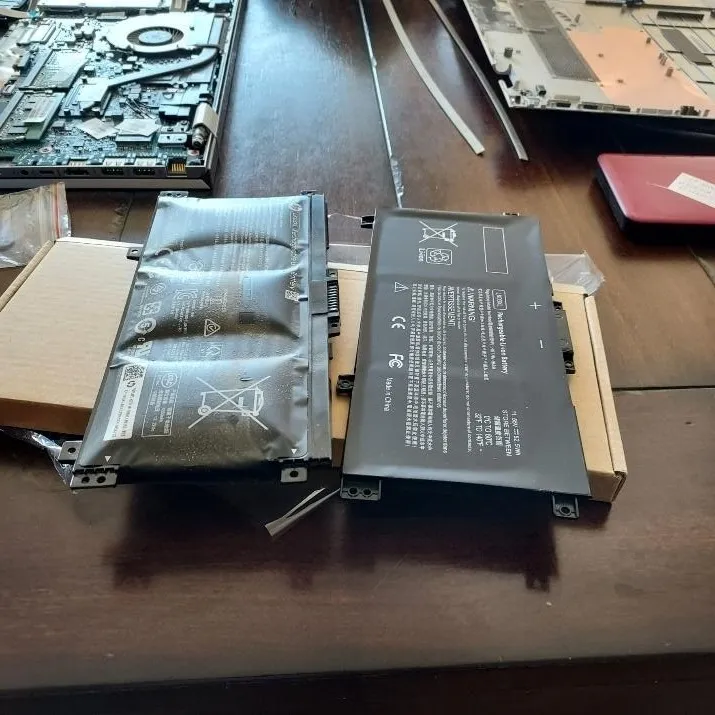
One more reason to not leave your laptop plugged in all the time is that it can cause a chemical reaction that can break your laptop or in extreme cases cause a fire. Here is a picture of a battery I replaced recently. The one on the right is a new battery. The one on the left was removed from a laptop. It had actually broken one of the screws holding the bottom onto the laptop.

Here is a video I made a few years ago that talks about this.

So, what can you do if your battery is not holding a change any longer and your computer is not that old? It used to be easy to replace batteries since they were only held to the laptop with a couple clips on the bottom of the laptop. You can still replace batteries but now you need to remove the back cover of the laptop to do it. If you need help doing this, I can swap your battery for you.


Want to get my computer services updates and reminders directly into your email inbox? Sign up for my FREE Newsletter!
Microsoft Office 365 Desktop Applications – How to get the most out of it.

This topic could expand into both business and personal applications but today I am talking about the personal applications and the Microsoft subscription model.

There are two versions of this subscription for individuals. Office 365 Personal is for one person only and it can be installed on up to five devices for that individual. The annual cost is currently $99.99 per year, and it comes with the most popular programs and a terabyte of OneDrive online storage. Office 365 Family allows you to have the same as above and also share it with 5 family members for the annual cost of $129.99. I am writing about this because many people don’t understand how to use this product to its fullest.

I had a customer call me today because she kept getting notice that her OneDrive was full, but she has the Microsoft Office Family subscription. What we discovered was that she has two different Microsoft accounts and she used one of them to log into her computer and that account was attached to her OneDrive. Her other account was being used for her Office 365 Family subscription, and she had signed into her office applications with that.

Since she didn’t have her office 365 family plan connected to the account with her OneDrive, she only had 5 GB which is what Microsoft gives for free to everyone that has a Microsoft account in the hope that they will fill it up and then pay for storage. In her case we just had to log in with the correct account and that solved her problem.

Then she mentioned that her husband was using and paying for DropBox for his pictures, and she wondered if he could use some of her terabyte for those pictures. Since she has the Microsoft family plan she can just go into her Microsoft account and send him a share link for the family plan and he can sign into his own Microsoft account and get his own terabyte of storage and also get access to all of the Microsoft desktop applications too.

Then she mentioned that they have a computer connected to a TV for storing and playing movies and she wanted to know how she could add that computer to her family plan. We ended up creating another Microsoft account with a new free email from Microsoft and she then shared her family plan with that account and now that computer has its own terabyte of storage.

I have helped many families and even small businesses use this Microsoft Family subscription to share their Office very economically. If you have a situation where this would be helpful let me know and I can help you set this up.


Want to get my computer services updates and reminders directly into your email inbox? Sign up for my FREE Newsletter!
Anti-Virus Companies vs. Marketing Companies

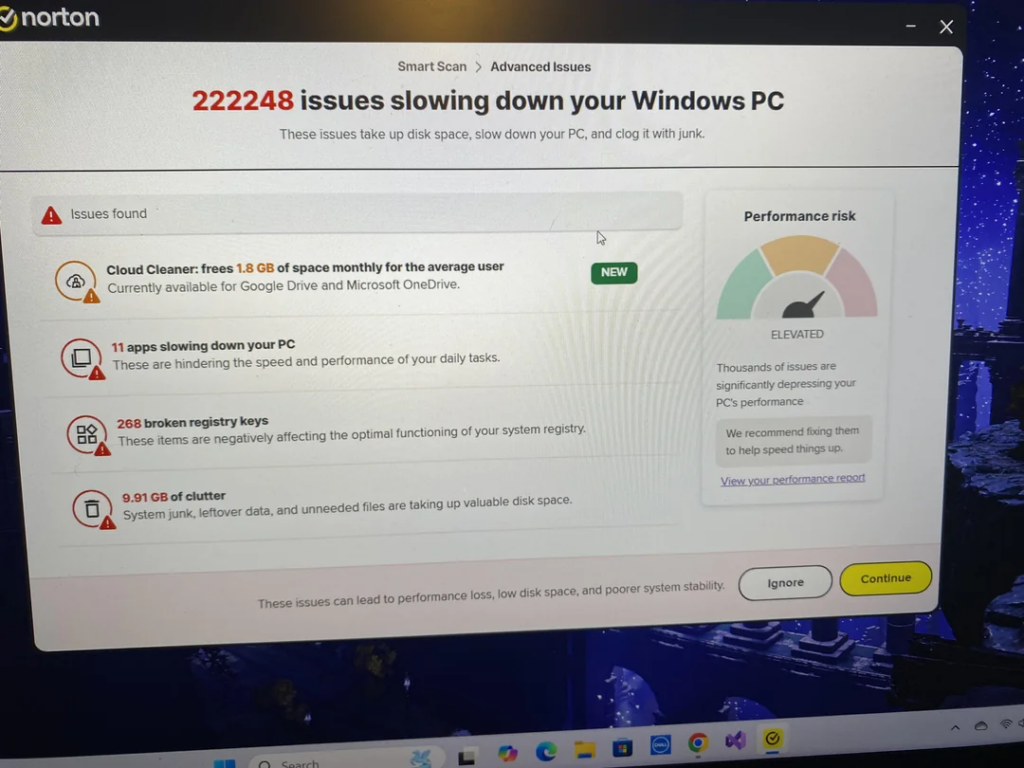
Every so often, I get a customer that sends me a picture of something that has popped up on their computer, and they want to know if they should be concerned by this or not. The picture below is from Norton, but there are many anti-virus companies that do this. I see similar forms of McAfee, AVG and Avast to name just a few.

I get it, these companies want to find more ways to make money from their existing customers. That is a proven business model. My issue with this is that the extra tools they are pushing are not worth the extra money and in most cases, they are not even needed. In some cases, they can even slow your computer down. They use scare tactics to boost their bottom line. Anytime your anti-virus wants to run something like this “smart scan” don’t waste your time. It is their code for “let’s get you to buy more stuff.”

The only exceptions to this are a few tools that actually work and you might get them cheaper by purchasing from a company you already do business with. Here are the items:

  1. VPN – If you regularly travel and use hotel and airport wifi, or if you have a lot of meetings in coffee shops and use their wifi, adding a VPN is a great idea. A VPN can certainly protect your computer while using this type of unsecured wifi. You really have no idea who could be watching you and trying to access your computer while on an open wifi system.
  2. Password Manager – I have talked a lot about password managers and if your anti-virus offers one I think you should compare the cost to a standalone password manager. Also make sure it has all of the tools and services that the stand-alone version has. Convenience could be another reason to go with the password manager that comes with your anti-virus.
  3. Web Protection Extensions – Many anti-viruses came with an extension for all of your web browsers that will protect you from dangerous sites and downloads. These usually don’t cost more but are just another tool included in their original price. I always recommend installing these as they are very helpful.

One last thing about anti-viruses. I do not recommend any of the free versions because there is only one reason for these companies to give you their product for free. That reason is that they can charge you in the future. I have seen people start with the free versions and before too long they are spending more than $100 per year. The free anti-virus companies are the best at scary marketing. Don’t fall for it.

As I always say, I am happy to help you find a great anti-virus and I do have strong opinions about many of them. Feel free to contact me for help with this and if you are getting the aforementioned pop-ups from your current anti-virus, I can find you one that won’t constantly bother you for more money.


Want to get my computer services updates and reminders directly into your email inbox? Sign up for my FREE Newsletter!

World Backup Day

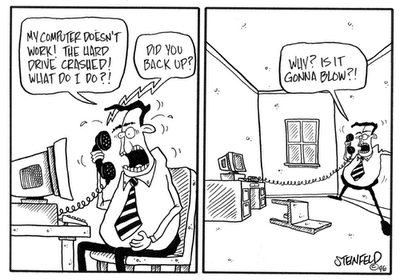
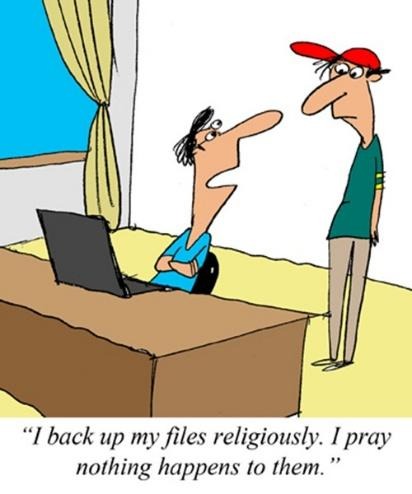
I talk about this day every year. It always falls on the 31st of March. I also mention this topic a few other times per year. Why do I keep going back to this as a topic for my newsletter? It is very simple. Many people still don’t have a backup system on their computers, or they don’t know how it really works so they never check to make sure it is working. This means their documents and those important photos that are irreplaceable are in danger of being deleted or corrupt. I really hate getting those phone calls asking for help after a computer crash.

When a computer crashes there is usually a good chance that I can recover the data but there are a few problems that can make this recovery very difficult and sometimes nearly impossible. If your backup hasn’t been working or your encryption is on, but you don’t know the key, or if you are relying on a cloud sync and it has become disconnected you could lose all of your data.

Many people think that a computer backup system is complicated and expensive, so they just take their chances. It doesn’t have to be this way. There are systems that I can set up that will only cost about $100 one time and keep your data backed up for years. There are other systems that I call set it and forget it because it happens automatically every time you are connected to the internet. These systems are a little more expensive but still only about $130 per year. Here are my go-to backup solutions:

  1. Online Backup with BackBlaze – This is the simplest backup solution. Once it is installed on your computer it will continue to back up your data over the internet. Every time you make a change to a document or add a picture it will be immediately uploaded to your backup account. It will keep all older copies of documents for 30 days so even if you delete or overwrite a document you still have time to discover it and retrieve the file. This backup will also send you an email if they have not seen your computer in seven days. If that happens you just need to reconnect it. The annual cost for all of this is $130, no matter how much data you are protecting on your computer. If you are interested in this type of backup here is a link to it.: https://www.backblaze.com/cloud-backup.html#af8497
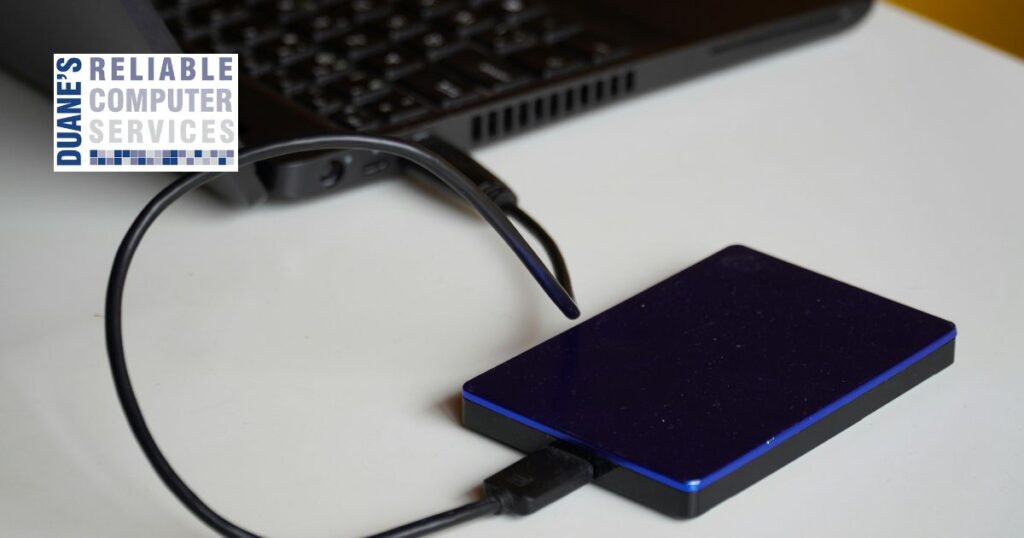
  2. External Hard Drive with Cobian Backup – If you purchase a 2 TB external drive, which costs around $100 you can use Cobian which is a free software to automatically make backups as often as needed on your computer. This software can be set up to backup all of your data every Friday at 4pm, for example. It also allows you to keep numerous copies of this full backup, allowing you to go back to previous versions if needed. I can help you set up a custom backup of this type.
  3. Syncing Your Data to a Cloud – This is the easiest way to keep a copy of your data. It can be helpful if your computer fails, but your data is still at risk. Here is a video that explains the difference between a backup and a cloud sync.

So, if you value the data that is stored on your computer, getting a backup is a good idea. If you have more questions about backups or if you need help setting up either kind, just reach out and I can help. I also have maintenance plans that will, among other things, verify your backup is still working on a regular basis.


Want to get my computer services updates and reminders directly into your email inbox? Sign up for my FREE Newsletter!

These Simple Things Can Lock You Out of Your Computer

I have talked about these things before, but now I have a program to help you make sure these things are in your control so that you will not get locked out of your computer or lose data. The things I am talking about are System Restore and Drive Encryption.

System Restore is a great tool that Microsoft has had for years, but recently I have run across many computers where this tool is turned off by default so unless you check this regularly you may not have access to this tool when you need it. This tool comes in handy when your computer gets stuck in the startup process and can’t continue. This sometimes happens due to an update or just because something didn’t shut down correctly. With system restore you can actually go back to before the issue and restore your settings to that time which fixes the issue. It only affects Windows and settings; it does not touch any documents or other data so it can be safely used regardless of how much data has changed since the last restore point.

Drive Encryption is there to protect you in case your computer is stolen. Unless the thief has your password, they can’t access the hard drive. Even if they remove the drive and try to connect it to another computer, they won’t be able to access it. They will then need a 48-character key, so it is virtually impossible to break into an encrypted drive. This is great unless you have a problem and your drive thinks it has been tampered with. It might require this key from you. If you are not aware of this encryption or don’t know your key this could be a real problem. I have even seen where Windows turns on this encryption without the user being aware of it.

Here is a video that talks about these:

For my business clients I have software that ensures these tools are working properly and that we have the key in case it is needed. I recently started a program for individuals that will do the same thing along with a few other things to make sure your computer is always running smoothly.

This program is my Semi-Annual Compute Maintenance Program. When I set this up, I come to you in person the first time to make sure everything is running correctly and then I schedule a “tune up” remotely every six months after that. You service your car a couple of times a year and you should do the same for your computer.

If you want more information about this program give me a call.


Want to get my computer services updates and reminders directly into your email inbox? Sign up for my FREE Newsletter!
Minicomputers, small in size but very big with computing power.

I have helped many people replace computers in the past year due to Windows 10 not being supported any longer. For many of those I had recommended these minicomputers. My go-to brand is GMK Tek. I have also used the brand Minisforum.

As I said in the title, they are very small but very powerful and also fairly inexpensive. When I compare these to the big computer names like Dell, HP or Lenovo they are usually a few hundred dollars less for similar specifications.

These computers come in two different forms; one is about 4.5 inches X 4.5 inches and about 2.5 inches tall. The other is 7 inches X 7 inches and about 1.5 inches tall. Here is a picture of the first size. I placed a standard wireless mouse on top of it for scale.

If you happen to go into a bank, you might notice one of these mounted on the back of the tellers’ monitors. Many banks have been using these for years.

So, the next time you need a new desktop, you might consider one of these mini powerhouses. But, just like any other computer it is best to really check them out because both of the companies I listed above sell good powerful computers, but they also have some that are really inexpensive and those come with a processor that I am sure most people would be unhappy with. As always, I am available to help you shop or even do the shopping for you when it comes to new computers.


Want to get my computer services updates and reminders directly into your email inbox? Sign up for my FREE Newsletter!
Multifactor Authentication

I have talked about the ways to protect yourself from having your accounts taken over before but this month I want to take it further and tell you how to ensure you don’t lose any account access when you get a new phone.

Recently I ran into a customer of mine that just got a new phone and he was not able to get into his business email account with Microsoft. He knew what the password was but since he had a different phone his Microsoft Authenticator app didn’t work for this account. This also happened to me about six months ago when I got a new phone except I was locked out of a few accounts for some companies that I manage email.

The problem is that you can’t automatically move your authenticator entries to a new phone. Microsoft says all you need to do is back up your authenticator into your Microsoft account and then restore it onto your new phone. This is technically true but only works for entries that are connected to your personal Microsoft account. Not for other accounts like your work or business email.

Since this was my customer’s business account the entry was not backed up by his personal account and he was locked out. Luckily, he knew his password, and he was able to contact Microsoft since he is a paying customer, and they helped him reset his authenticator for his business email. He works for himself and is the admin on his account so reaching out to his company admin was not an option. When this happened to me, I was also able to get my authenticator entries back because I set up every option available when I initially set up each account in my authenticator. So, I was able to receive text messages or  codes to alternate email addresses.

Why am I telling you this? The simple fact that I didn’t stop with just the authenticator app and decided to also set up texting or alternate email options for the accounts I manage made it easier for me to get back into those accounts after getting a new phone.

This is an option when initially setting up a new account, but it is also available in your Microsoft account so you can add other options at any time. This is also good if you initially set up your account with an old phone number or email that you no longer have access to because you can login to your account and update with the new phone number or email account. Do these things now instead of waiting until you have a new device and it is too late.

If you are not sure how to update this information or even how to set up an authenticator I can help with this also.


Want to get my computer services updates and reminders directly into your email inbox? Sign up for my FREE Newsletter!

Hey Google, Is This A Scam?

(Reprint from Email Scambuster Monthly Report)

You can Google to verify scams. This works with phone numbers that are in questionable emails, but you can also Google certain phrases as well to check for scams.

Most people are aware of the “Nigerian Prince” scam. This is when you receive a long letter from a supposed Nigerian prince who is hiding from his government and just trying to get his fortune out of his country and needs your help. He will pay you handsomely for just using your account to transfer his money into. If you receive this letter or any other potential scam letter you can copy the first few sentences and drop them into Google search. When you do this, you will usually find many similar versions that others have posted about the scam. It is a quick and easy way to verify a scam.

As I mentioned before, this can verify if it is a scam but if you don’t find any information don’t assume it isn’t a scam. It might just be too new to be searchable yet. This is just another tool to spot scams.

Years ago, I was watching a talk show that was about Romeo scams. This is where a lonely senior, male or female is having an online relationship with a hot young single from another country. They connect romantically by writing love letters and even having long loving conversations and eventually asking for money and usually lots of it.

In one of these cases, they took one of the love letters and ran that through Google and it came up with multiple versions and talked about all of the scams it was used in. They were actually able to get the victim to believe it was a scam due to all of the sites that had the same letter word for word. Scammers don’t invent something new if they can steal a scam from someone else.

Some of you know that I write another newsletter every month in addition to this one. It is called Email Scambuster Monthly Report. The purpose of this newsletter is to highlight current scams and educate those that are most vulnerable to scams.

I charge an annual fee of $30.00 for this newsletter because it has been proven that if you give someone information for free, they are less likely to read it and see the value of it. The information in these newsletters is too important for people to ignore.

This article is from that newsletter. I hope you see the value in it and if you know of someone who would benefit from this on a monthly basis, please click the link below and sign them up for it.


Want to get my computer services updates and reminders directly into your email inbox? Sign up for my FREE Newsletter!