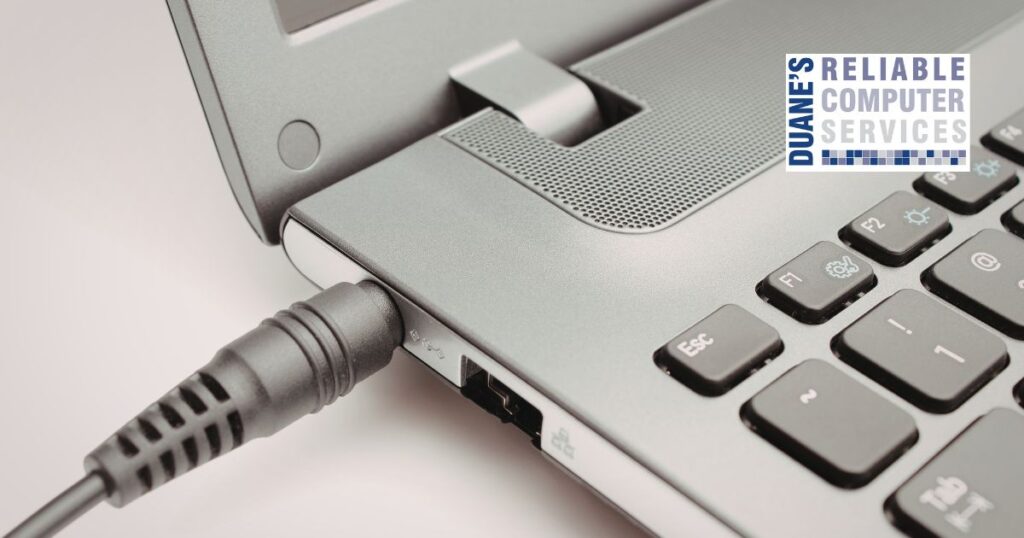

Taming the Lightning Threat

I talk about this every year, but it still needs to be said again and again. Lightning can and does kill electronics. Taking precautions can save your devices.

Every year, thousands of people have to make a claim with their homeowner’s insurance due to lightning strikes that destroy their electronics. If these electronics are computers, the loss might even be greater than money if they lose precious data that can’t be replaced. Hopefully all of you have backups in place for that, but that is not what I am talking about today.

Today, I want to focus on protecting from power surges that can send too much electricity through your devices and actually destroy them. Lightning is a very dangerous thing and it can happen at almost any time.

Any electronic device in your household (computers, stereos, printers, televisions, routers, gaming systems and anything else that is plugged into an electric outlet) should be plugged into a surge protector instead. A surge protector is similar to a power strip except that it has a protection built into it that will cut the circuit to the devices if there is a dangerous amount of electricity going through the surge protector.

All surge protectors are power strips, but not all power strips are surge protectors. When purchasing a strip make sure it also offers surge protection. Many will also offer a warranty that includes an amount of protection for the devices connected if the surge fails. This protection can take the place of using your insurance in many situations. When shopping for surge protectors, look on the packaging for this type of added protection. This can save you from an insurance rate increase for a small claim.

I think most people have surge protectors for their electronics that are stationary like desktop computers, televisions, and printers, but many people forget about phone chargers and even laptops since they get plugged into the closest outlet whenever needed, instead of a permanent spot that has a surge connected. These devices can be affected by lightning just as much as the stationary devices, and might be more vulnerable since they are not stationary.

All of us should get into the habit of plugging phone chargers into a surge before charging our lifeline devices. I also recommend adding a surge protector to your laptop bag, so you always have one handy even when you are not at home. Lightning can strike at a coffee shop just as easily as your home. Plus it might be helpful to be able to plug in more than one device at the coffee shop sometimes.

You spend a lot of money on these devices, why not spend a little more to protect them.


Want to get my computer services updates and reminders directly into your email inbox? Sign up for my FREE Newsletter!


Laptop Battery Life, How to Keep It from Disappearing.

This is an issue that comes up frequently. Someone has a laptop that is only a couple years old, but the battery won’t hold a charge for more than about an hour when it used to last for many hours. 

What I usually find out is that this person leaves it plugged in almost all of the time. They only unplug if they want to use their laptop somewhere besides the desk or table they normally use. They think it might run out of juice.

That is the worst thing you can do with your laptop battery. It needs to be used. The entire battery, not just the top 10%. If you always keep it plugged in the battery will become useless. It is best to only plug it in when it is less than 10% left and then charge it until it is full. Once it is full, unplug it. By doing this your battery will last much longer and continue to give you hours of use per charge.

I know sometimes this is not possible if you are in an important meeting and can’t risk having the battery go dead. Leaving it plugged in once in a while will not cause damage but the constant plug in will. Another good thing to do is once a month let it die completely. This is like a reset for the battery.

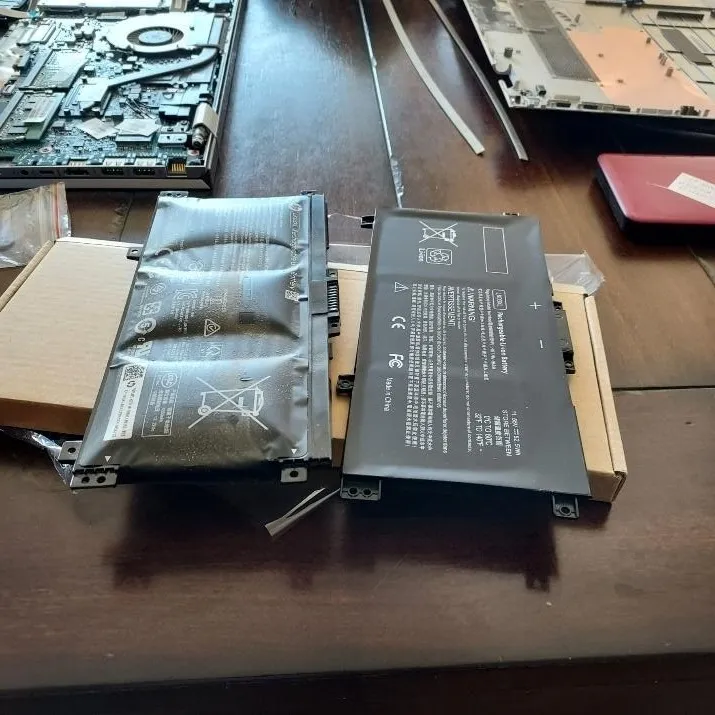
One more reason to not leave your laptop plugged in all the time is that it can cause a chemical reaction that can break your laptop or in extreme cases cause a fire. Here is a picture of a battery I replaced recently. The one on the right is a new battery. The one on the left was removed from a laptop. It had actually broken one of the screws holding the bottom onto the laptop.

Here is a video I made a few years ago that talks about this.

So, what can you do if your battery is not holding a change any longer and your computer is not that old? It used to be easy to replace batteries since they were only held to the laptop with a couple clips on the bottom of the laptop. You can still replace batteries but now you need to remove the back cover of the laptop to do it. If you need help doing this, I can swap your battery for you.


Want to get my computer services updates and reminders directly into your email inbox? Sign up for my FREE Newsletter!
Microsoft Office 365 Desktop Applications – How to get the most out of it.

This topic could expand into both business and personal applications but today I am talking about the personal applications and the Microsoft subscription model.

There are two versions of this subscription for individuals. Office 365 Personal is for one person only and it can be installed on up to five devices for that individual. The annual cost is currently $99.99 per year, and it comes with the most popular programs and a terabyte of OneDrive online storage. Office 365 Family allows you to have the same as above and also share it with 5 family members for the annual cost of $129.99. I am writing about this because many people don’t understand how to use this product to its fullest.

I had a customer call me today because she kept getting notice that her OneDrive was full, but she has the Microsoft Office Family subscription. What we discovered was that she has two different Microsoft accounts and she used one of them to log into her computer and that account was attached to her OneDrive. Her other account was being used for her Office 365 Family subscription, and she had signed into her office applications with that.

Since she didn’t have her office 365 family plan connected to the account with her OneDrive, she only had 5 GB which is what Microsoft gives for free to everyone that has a Microsoft account in the hope that they will fill it up and then pay for storage. In her case we just had to log in with the correct account and that solved her problem.

Then she mentioned that her husband was using and paying for DropBox for his pictures, and she wondered if he could use some of her terabyte for those pictures. Since she has the Microsoft family plan she can just go into her Microsoft account and send him a share link for the family plan and he can sign into his own Microsoft account and get his own terabyte of storage and also get access to all of the Microsoft desktop applications too.

Then she mentioned that they have a computer connected to a TV for storing and playing movies and she wanted to know how she could add that computer to her family plan. We ended up creating another Microsoft account with a new free email from Microsoft and she then shared her family plan with that account and now that computer has its own terabyte of storage.

I have helped many families and even small businesses use this Microsoft Family subscription to share their Office very economically. If you have a situation where this would be helpful let me know and I can help you set this up.


Want to get my computer services updates and reminders directly into your email inbox? Sign up for my FREE Newsletter!